

JSON Prompting for AI Video: How Veo 3.1 & Sora 2 Replace “Prompt and Pray”
If you work in performance marketing, content production, or creative strategy, you’ve probably felt this pattern:
- Type a clever prompt into an AI video tool.
- Hit Generate.
- Cross your fingers and hope “cinematic, 4K, product hero shot” doesn’t turn into “blurry handheld chaos.”
Generative models like Veo 3.1 and Sora 2 have made cinematic video accessible. But the default workflow is still what many teams quietly call “prompt and pray”—you throw in a paragraph of text and hope the model guesses your intent.
That guesswork is fine for one-off experiments. It completely breaks when:
- you’re running A/B tests at scale,
- you need brand consistency across tens of assets, and
- every extra generation burns time, credits, and budget.
This is where JSON prompting changes the game.
Instead of vague text, you define structured fields—subject, camera, lighting, duration, audio, even aspectRatio—and let the model follow a clear brief. JsonToVideo is built around this idea: structured JSON prompts that produce predictable, on-brand clips with Veo 3.1 or Sora 2.
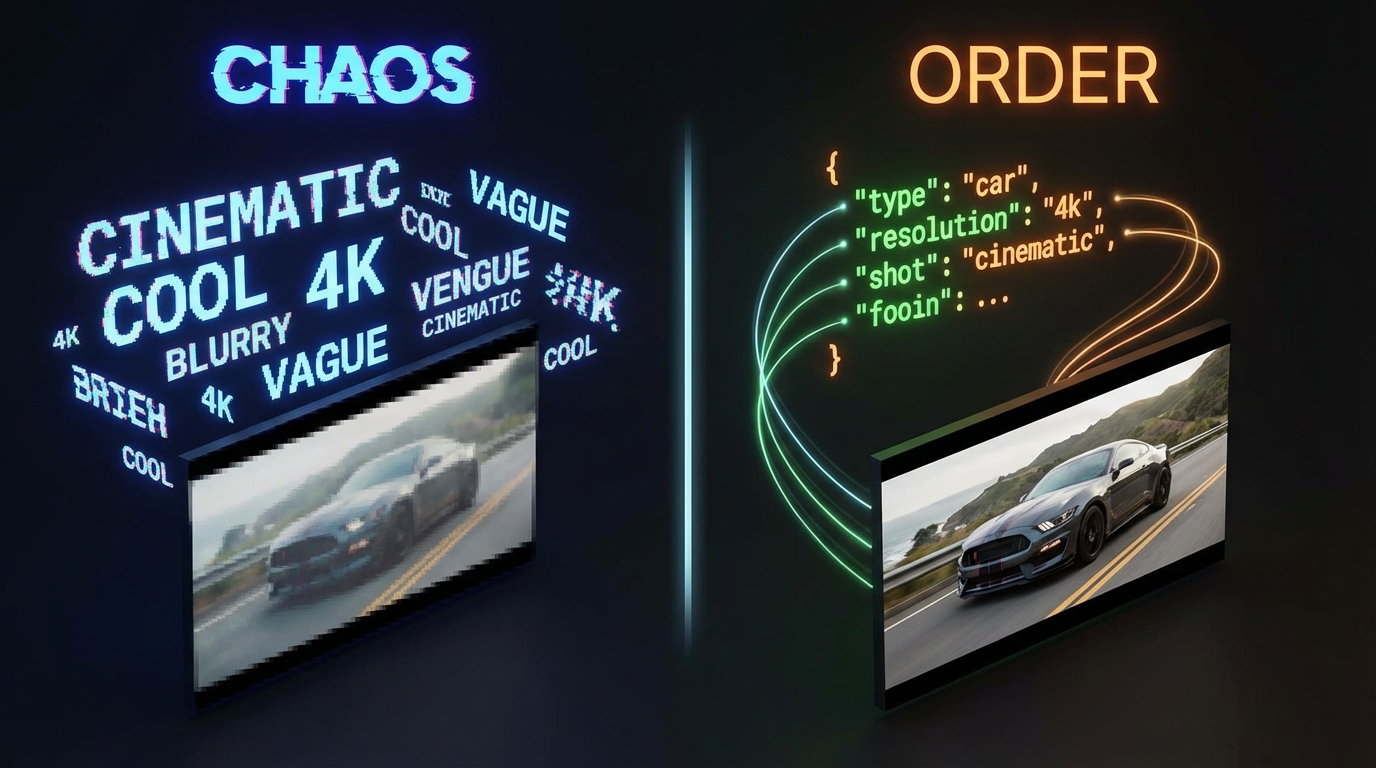
Why Free-Form AI Prompts Break at Scale
A standard AI video workflow looks like this:
“A futuristic sports car driving through Tokyo at night, neon lights, cinematic lighting, 4K, product-style shot.”
The model has to guess all of the following:
- What exactly is the subject?
- Is the camera static, handheld, tracking, or a drone?
- Is the lens wide, normal, or telephoto?
- Is this a hero product ad or a mood piece?
- Is the lighting moody, commercial, flat, or stylized?
Change one adjective, and you often get a completely different video. For creators making YouTube shorts that’s acceptable. For advertisers with performance targets, it’s a nightmare.
The pain points:
- You can’t reliably reproduce a winning shot.
- A/B tests become random; you don’t know what changed.
- Scaling from 3 creatives to 30 turns into manual prompt tinkering hell.
Free-form prompts are good for exploration. They are terrible as a production system.
What Is JSON Prompting for AI Video?
JSON prompting treats your video brief like structured data instead of a paragraph.
Instead of this:
“A red sports car drifting on a racetrack, cinematic, warm sunlight, 8 second ad, 16:9, upbeat music.”
You move to something like this:
{
  "subject": "A red sports car drifting on a racetrack corner",
  "camera": "Low-angle tracking shot following behind the car",
  "lighting": "Golden hour, warm sunlight, long shadows",
  "style": "Cinematic, crisp, high contrast",
  "durationSeconds": 8,
  "aspectRatio": "16:9",
  "audio": "Energetic electronic track with engine sounds"
}
Now the model doesn’t have to guess:
- Subject = what is on screen.
- Camera = how the viewer experiences it.
- Lighting & style = the emotional tone.
- Duration & aspect ratio = format constraints.
Platforms like JsonToVideo take this further: they wrap JSON prompts in a visual editor, reusable templates, and a dual-model setup (Veo 3.1 and Sora 2) that all share the same schema.
Core JSON Fields for Veo 3.1 & Sora 2
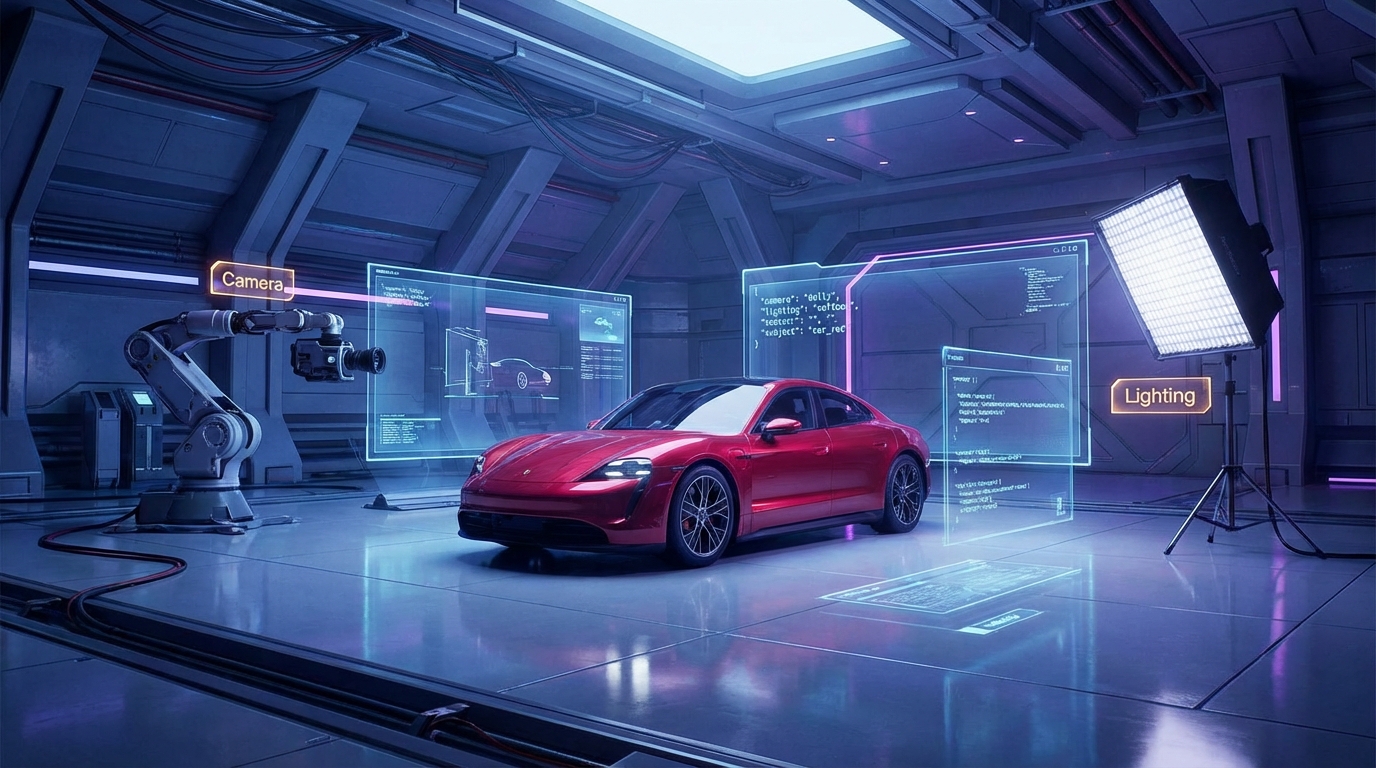
While every team ends up with its own schema, most high-performing setups share a few core fields:
1. subject: Who or what are we actually filming?
This is your hero:
- a product on a table,
- a running athlete,
- a city skyline,
- a person talking to camera.
By isolating subject, you keep identity and geometry stable while you iterate on camera, lighting, and style.
2. camera: How do we see the subject?
Text prompts often bury camera direction as an afterthought. JSON prompting forces you to spell it out:
camera: "Drone establishing shot, slow push-in over the city"camera: "Handheld, eye-level, gentle side-to-side movement"camera: "Macro close-up, shallow depth of field, slow dolly across the product"
Veo 3.1, in particular, responds strongly to explicit camera language—think of it as the cinematography field in your schema.
3. lighting & style: Mood, genre, and polish
Lighting and style deserve their own fields because they change emotion without breaking content:
lighting: "Soft daylight, clean studio, minimal shadows"lighting: "Cyberpunk neon, strong rim lights, dark background"style: "Slick ecommerce ad, high contrast"style: "UGC-style vertical video, natural light, slight grain"
You can run dozens of lighting/style combinations on the same subject + camera to see what converts best.
4. durationSeconds & aspectRatio: Platform fit
You know the problem: a 16:9 YouTube ad looks awful when cropped to 9:16 for TikTok.
JSON lets you encode duration and frame:
durationSeconds: 8 or 12aspectRatio: "16:9", "9:16", or "1:1"
JsonToVideo’s engine uses these fields to target YouTube, TikTok, Reels, or in-feed placements from the same template, not yet another prompt.
5. audio and brand constraints
Finally, you can lock sound and brand:
audio: "Energetic trap beat, 100 BPM, no vocals"audio: "Calm ambient pad, subtle risers"brandLock.logoPlacement: "bottom-right"brandLock.colorPalette: "red, black, white"
This is the difference between “nice demo” and shippable ad.
Step-by-Step: Your First Veo 3.1 JSON Prompt (Product Ad, 16:9)
Let’s turn this into something you can actually copy.
1. Start with a simple schema
Here’s a minimal template for a Veo 3.1 product ad:
{
  "model": "veo-3.1",
  "aspectRatio": "16:9",
  "durationSeconds": 8,
  "subject": "",
  "camera": "",
  "lighting": "",
  "style": "",
  "audio": "",
  "brandLock": {
    "logoPlacement": "bottom-right",
    "colorPalette": ""
  }
}
2. Fill it for a concrete scenario
Now let’s say you’re promoting a wireless earbud:
{
  "model": "veo-3.1",
  "aspectRatio": "16:9",
  "durationSeconds": 8,
  "subject": "A pair of matte black wireless earbuds on a reflective glass surface",
  "camera": "Slow dolly-in from medium shot to close-up, slight parallax around the product",
  "lighting": "Dark studio with sharp white rim lights and subtle reflections",
  "style": "Premium tech commercial, crisp, high contrast, 1080p-ready",
  "audio": "Modern electronic track with deep bass hits synced to transitions",
  "brandLock": {
    "logoPlacement": "bottom-right",
    "colorPalette": "black, white, electric blue"
  }
}
3. Run it through JsonToVideo
In JsonToVideo:
- Open the JSON Prompt editor.
- Paste the template and tweak
brandLockandstyleto match your brand. - Select Veo 3.1 as the model and generate.
You now have a repeatable, editable recipe instead of a fragile one-off prompt.
Example 2: Vertical UGC-Style Social Ad (Sora 2, 9:16)
Now let’s adapt the idea for a UGC-style TikTok or Reels clip using Sora 2.
{
  "model": "sora-2",
  "aspectRatio": "9:16",
  "durationSeconds": 10,
  "subject": "A young woman recording a selfie video talking about her new skincare serum in a cozy bathroom",
  "camera": "Handheld, eye-level, slight natural shake, occasional micro reframing",
  "lighting": "Warm indoor lighting from bathroom mirror, soft shadows, natural skin tones",
  "style": "UGC vertical ad, feels like a real phone camera clip, light grain",
  "audio": "Natural voiceover with subtle background music at low volume",
  "callToAction": "On-screen text: 'Try it for 30 days' appearing near the end"
}
This is still structured, but intentionally less polished than a Veo 3.1 product spot. You’re telling Sora 2:
- Make it feel like a real person’s selfie,
- Keep the motion honest and slightly shaky,
- Put the CTA on screen, not as a random afterthought.
Example 3: Image-to-Video JSON Motion from a Product Photo
JsonToVideo also supports image-to-video, where you upload a still and add JSON to control motion.
Imagine you already have a strong product photo and want a simple hero motion:
{
  "mode": "image-to-video",
  "imageUrl": "https://your-cdn.com/images/serum-bottle.png",
  "model": "veo-3.1",
  "durationSeconds": 10,
  "aspectRatio": "9:16",
  "cameraPath": "Start on medium shot of the bottle, then slow dolly-in and small clockwise arc around the product",
  "motionIntensity": "medium",
  "pacing": "steady, no sudden jumps",
  "lighting": "Clean studio light, white background, soft reflections on glass",
  "style": "Minimalist ecommerce ad, focus on clarity and label readability",
  "audio": "Soft ambient background bed, no vocals"
}
This matches how JsonToVideo’s Image to Video feature describes “Photo to Motion in One Step” and “JSON Motion Controls”: you provide an image, select Veo 3.1 or Sora 2, and use JSON to steer camera path and pacing instead of hoping the model picks a good pan or zoom.
From Single Clips to Programmatic Creative

The real power of JSON prompting is not that one prompt looks slightly better. It’s that:
- You can store prompts as templates,
- Swap a few fields (
subject,colorPalette,callToAction), and - Generate dozens or hundreds of variations programmatically.
For example:
Keep camera, lighting, style, durationSeconds, and aspectRatio fixed.
Iterate over a spreadsheet of products:
subject: "Red running shoe on concrete floor"subject: "Black trail shoe on rocky path"subject: "White lifestyle sneaker on wooden desk"
Or change just the callToAction for A/B testing:
- "Free shipping today"
- "Try it for 30 days"
- "Bundle & save 20%"
This is what JsonToVideo is designed for: turning structured data into cinematic clips without manually re-prompting for every version.
Why Advertisers Care: Quality, Rights, and Format
Free tools and one-off demos are fine for hobbies. For actual campaigns, teams care about:
- Resolution that holds up in ads – JsonToVideo is built around 1080p-grade outputs that look clean on modern displays.
- No watermarks – your brand, not the tool, should own the frame.
- Commercial usage rights – so your legal team doesn’t have a panic attack.
- Multiple aspect ratios – 16:9 for landing pages, 9:16 for TikTok/Reels, all from the same template.
- Predictable costs – credit-based pricing that maps cleanly to volumes of Veo 3.1 and Sora 2 renders.
JSON prompting doesn’t just make videos look better—it makes the whole pipeline measurable and repeatable.
How JsonToVideo Fits Into Your Stack
JsonToVideo is built specifically for teams who want to treat prompts like code:
- Structured JSON prompts for Veo 3.1 and Sora 2
- Template library for reusable shots and campaigns
- Image-to-video with JSON motion controls when you already have strong photos
- Credit-based pricing that scales from solo creators to agencies and in-house teams
You can start visually and let the editor generate JSON for you, or jump straight into raw JSON if you’re already comfortable with it.
Next Steps: Stop Guessing, Start Directing
If you’re still writing one-line prompts and hoping for the best, you’re leaving money—and sanity—on the table.
Here’s how to turn this article into an actual workflow:
- Open the JSON Prompt Editor: Start from a preset, then add
subject,camera,lighting,durationSeconds, andaspectRatio. - Paste One of the Templates Above: Customize
subject,brandLock, andcallToActionfor your product. - Test Veo 3.1 vs Sora 2: Use Sora 2 for fast creative exploration, then lock winning concepts in Veo 3.1 for production-quality runs.
- Scale with Data: Once you have a JSON template that converts, wire it to a spreadsheet or CMS and generate at scale.
You don’t have to abandon creativity. You just need to stop praying and start directing.
Table of Contents
Author

Categories
More Posts

Wan 2.6 Is Live: Role-Play, Storyboards, Native Audio — and the Rise of “Video-as-Code”
Wan 2.6 brings production-minded AI video features like role-play for better character consistency, multi-shot storyboard control, and native audio support. This makes it far more useful for real-world workflows—especially e-commerce product ads, short teaching clips, and animated sequences that need repeatable structure. In this post, we explain what’s new in Wan 2.6 and why “video-as-code” matters: using structured JSON prompts to generate consistent videos in bulk, quickly test variations, and export platform-ready formats without manual editing.

GPT Image 1.5 vs. Nano Banana Pro: The First Real “Production-Ready” Image Model Face-Off
GPT Image 1.5 excels at instruction following and precise editing, making it ideal for structured workflows. Nano Banana Pro leads in studio-quality visuals and compositing. Choose the right model based on your priority: strict control or high-end visual polish.
Newsletter
Join the community
Subscribe to our newsletter for the latest news and updates